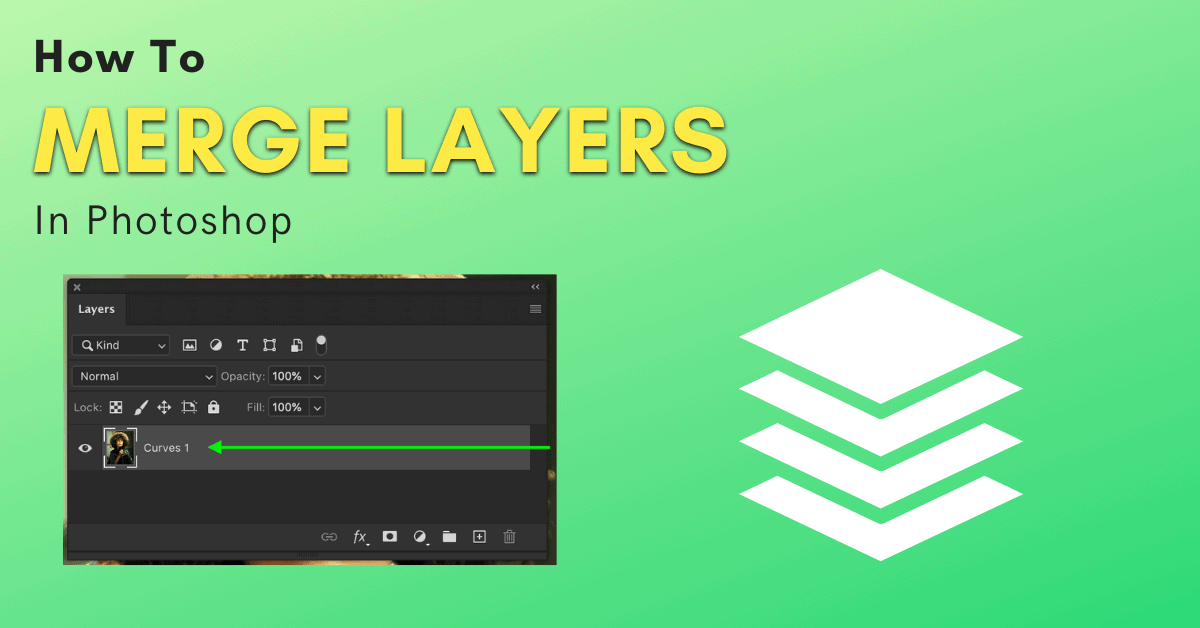
Learning how to merge layers in Photoshop will help you organize your Layers Panel and keep your project file size down. With different methods and keyboard shortcuts, merging multiple layers has never been easier.
In this tutorial, you’ll learn the ins and outs of merging layers in Photoshop.
How To Merge Layers In Photoshop
Step 1: Select The Layers You Want To Merge
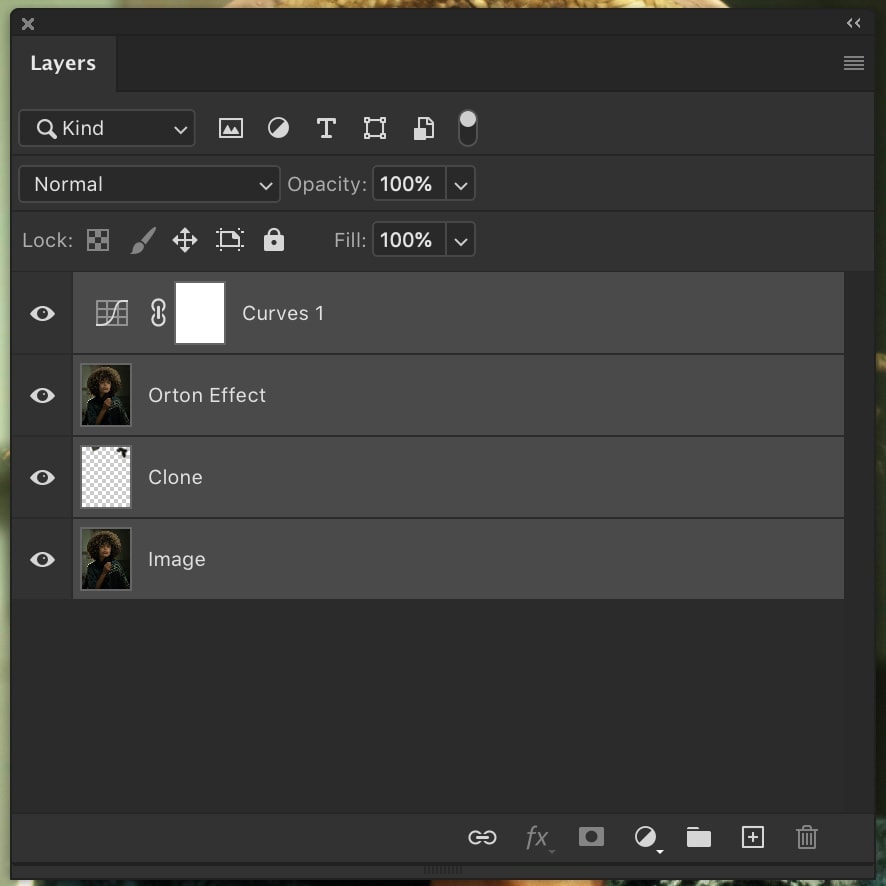
First, select the layers you want to merge. To select a sequence of layers, hold Shift and click between the first and last layers you want to merge.
If you’d rather select layers individually, hold Control (Win) or Command (Mac) and click on the layers to highlight them.
Step 2: Right-Click And Select Merge Layers
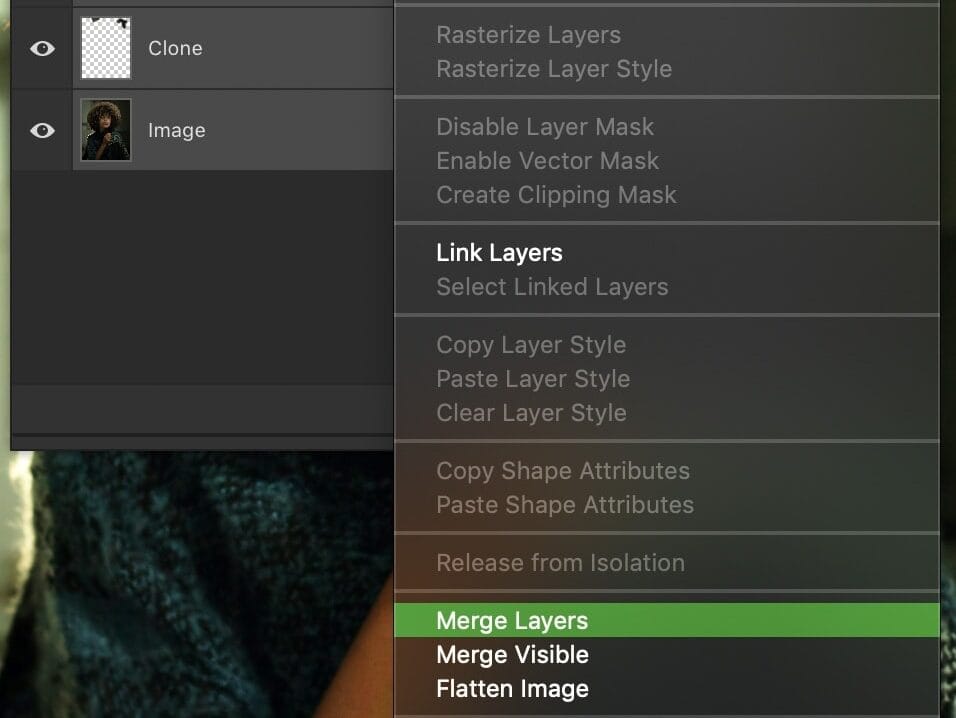
With your layers highlighted, right-click and select Merge Layers or press Control + E (Win) or Command + E (Mac). You can also go up to Layer > Merge Layers to achieve the same result. Doing this will merge all of your selected layers into one.
How To Merge Visible Layers In Photoshop
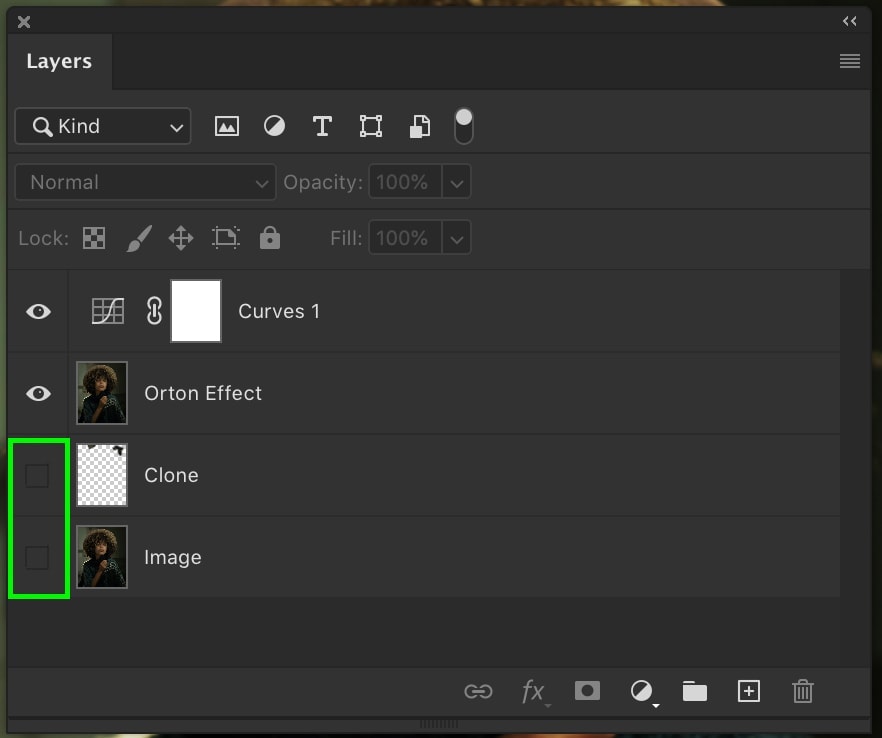
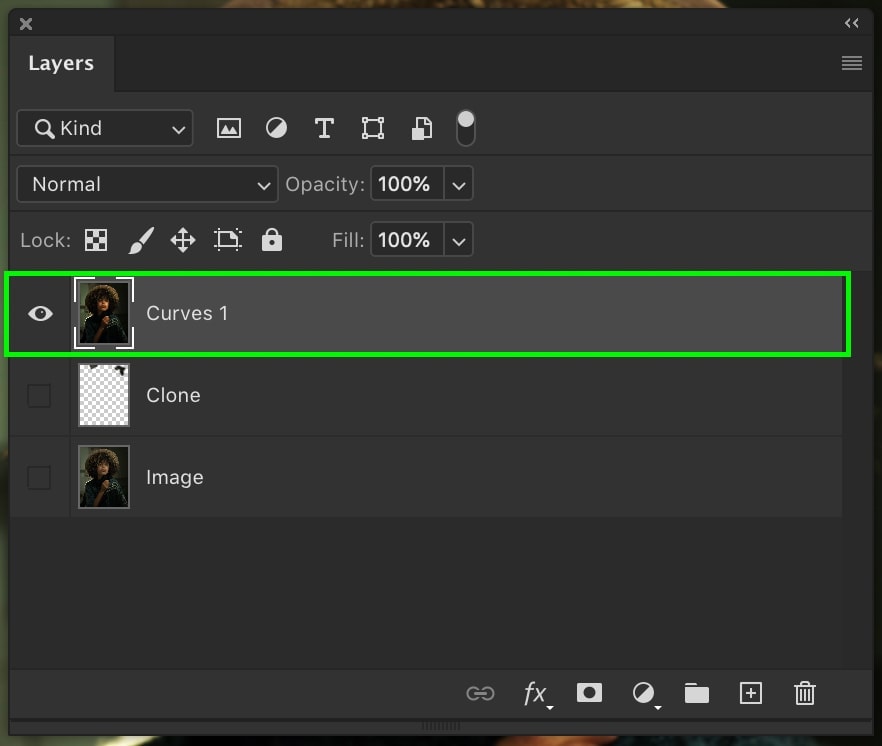
You can tell Photoshop to combine a series of layers based on whether or not they are visible. Invisible layers will stay as is, and visible ones will merge.
Within your layer stack, click the eyeball icon to make certain layers invisible. Now, the only visible layers will be the ones you want to merge.
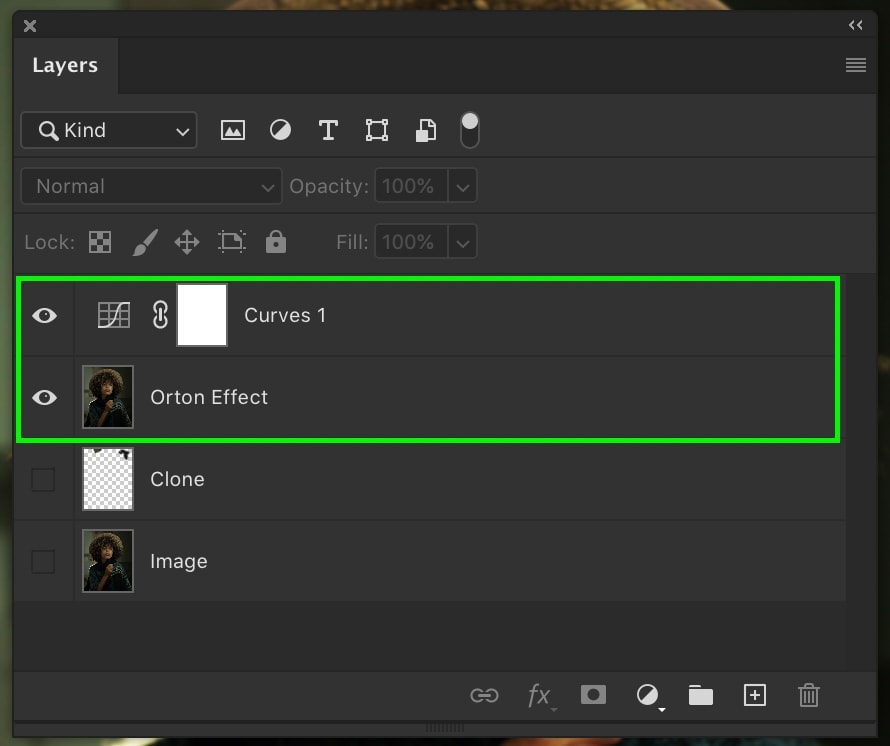
Right-click on your layers and select Merge Visible. Alternatively, you can also go to Layer > Merge Visible or use the keyboard shortcut Shift + Control + E (Win) or Shift + Command + E (Mac). If you need to duplicate the layers you are merging (while merging them), press Shift + Control + Alt + E (Win) or Shift + Command + Option + E (Mac).
All of your invisible layers will stay separate, while the visible layers will merge into one.
How To Merge All Layers Into The Background Layer
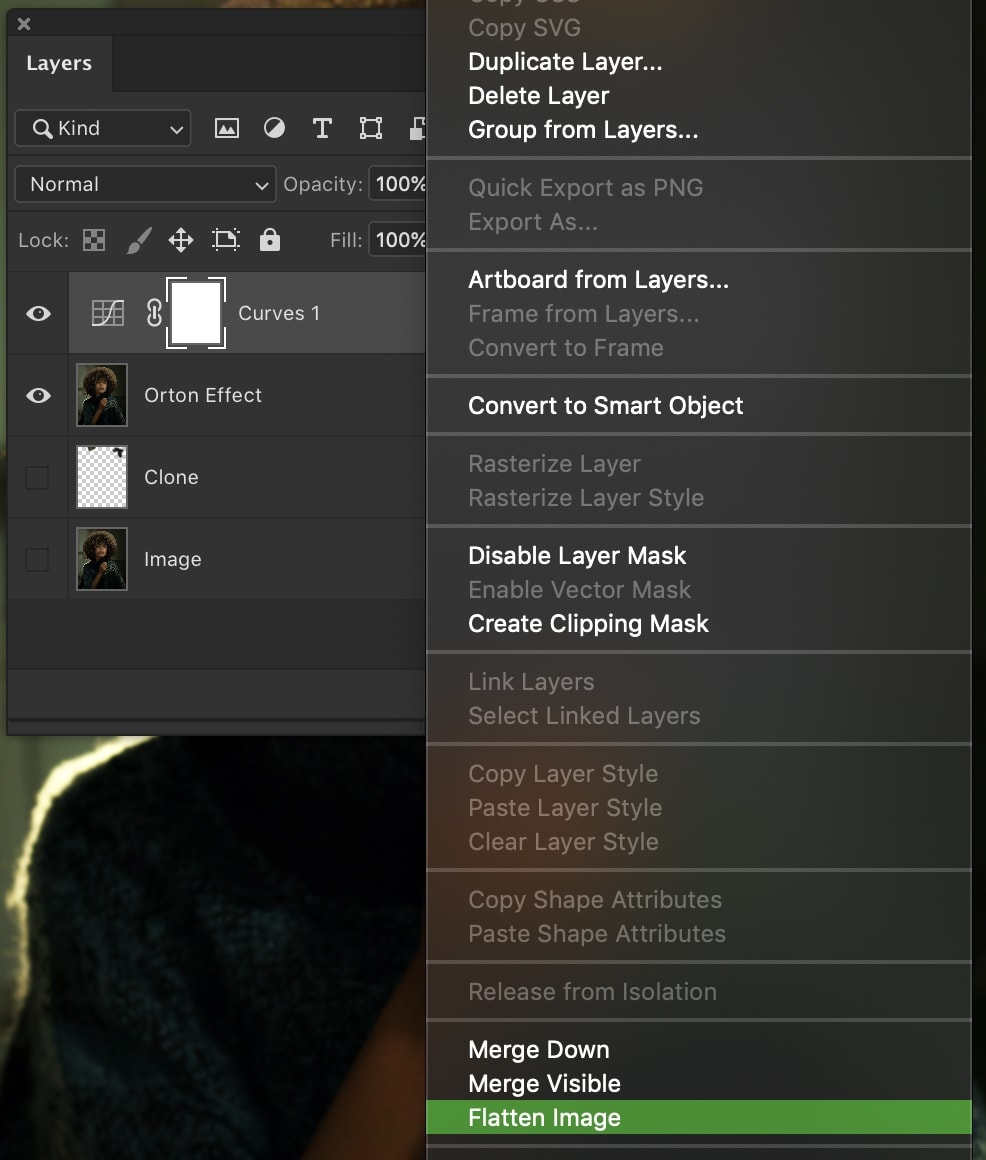
Maybe you don’t want to merge your layers individually, but you’d rather merge everything into your background layer. There’s a quick way to do this without having to select any layers. Just right-click on any layer and select Flatten Image.
This will merge all of your layers into your background layer with one click.
Additional Tips For Merging Layers In Photoshop
Merge Layers To Reduce Document Size
Merging layers can be a great way to reduce your document size. Photoshop projects are typically PSD files. As you create more layers and add new images to the project, it inevitably grows in size. The trouble is PSD files have a limit of 2GB. When you’re working with a ton of layers, this poses a bit of a problem.
Luckily you can merge layers to bring down the file size of your project. Since merging multiple layers combines layers into one, there is less information to store.
Merge Layers To Organize The Layers Panel
Merging is also a great way to organize your Layers Panel so you aren’t stuck scrolling endlessly. If you have two or more layers that serve the same purpose, consider combining them to reduce clutter.
Make note that merging layers makes it (almost) impossible to re-edit the merged layers individually. You can unmerge layers in some cases, but it’s not the most efficient.
Learning how to merge layers in Photoshop is an important skill to have. If you run into troubles with project sizes or a cluttered layers panel, merging layers can help you out.